
Introduction
Every gamer wants a smooth, responsive, and enjoyable gaming experience. Whether you’re playing fast-paced shooters, open-world adventures, racing games, or competitive multiplayer titles, performance plays a major role in how well you enjoy the game. Even the most exciting games can become frustrating when you experience low frame rates, screen stuttering, or input lag.
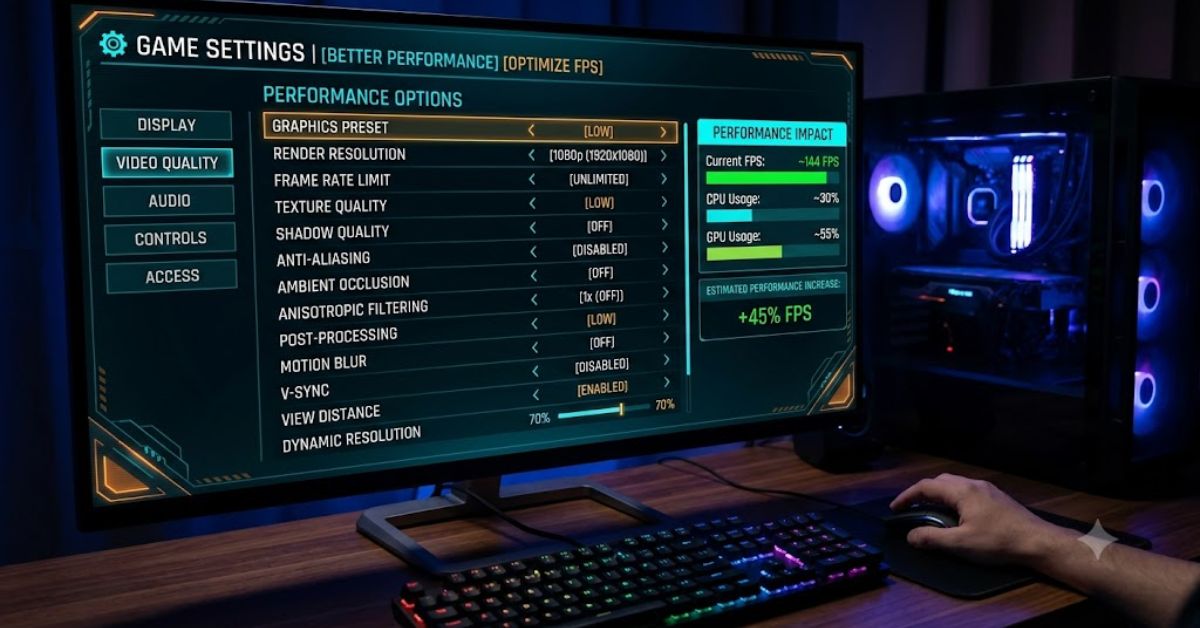
Fortunately, you don’t always need expensive hardware upgrades to improve your gaming experience. In many cases, simply adjusting your game settings for better performance can significantly increase FPS, reduce lag, and create much smoother gameplay. Modern games offer dozens of graphics and performance options, but many players aren’t sure which settings actually matter.
This guide explains everything you need to know about optimizing your game settings. You’ll learn which graphics options consume the most system resources, how to balance image quality with performance, and how to configure your PC for the best results.
Whether you’re a beginner learning basic optimization or an intermediate gamer looking to squeeze extra performance from your system, this guide will help you enjoy smoother gaming with practical, easy-to-follow advice.
What is Game Settings for Better Performance?
Game settings for better performance refer to adjusting in-game graphics, display, and performance options to maximize your computer’s efficiency while running games.
Instead of using the highest graphical settings available, players carefully balance visual quality and performance to achieve:
- Higher FPS (Frames Per Second)
- Lower input delay
- Faster response times
- Reduced lag
- Stable gameplay
- Better competitive performance
These settings include options like texture quality, shadows, anti-aliasing, render distance, lighting effects, resolution scaling, and many other graphics features.
Finding the right combination depends on your hardware specifications, the type of game you play, and your personal preferences.
Why is Game Settings for Better Performance Important?

Properly optimized settings offer several important advantages beyond simply increasing FPS.
First, smoother gameplay makes games feel more responsive. Character movement becomes fluid, aiming improves, and reaction times become faster.
Second, reducing unnecessary graphical effects lowers the workload on your graphics card and processor. This helps prevent sudden FPS drops during intense action scenes.
Additionally, optimized settings reduce system temperatures. Lower temperatures help your components maintain consistent performance and may even extend their lifespan.
For competitive gamers, stable frame rates provide a significant advantage because visual information updates more consistently.
Finally, players with older or budget PCs can continue enjoying modern games by adjusting settings intelligently instead of immediately upgrading hardware.
Detailed Step-by-Step Guide
Step 1: Check Your PC Specifications
Before changing settings, understand your hardware.
Important components include:
- Graphics card (GPU)
- Processor (CPU)
- RAM
- Storage drive
- Monitor refresh rate
Knowing your hardware helps determine realistic graphics expectations.
Step 2: Start with Medium Preset
Many games offer presets such as:
- Low
- Medium
- High
- Ultra
Start with Medium.
Play for several minutes while monitoring FPS.
If performance remains smooth, gradually increase settings.
If FPS drops, reduce demanding options individually.
Step 3: Adjust Screen Resolution
Resolution has one of the biggest impacts on gaming performance.
Common resolutions include:
- 720p
- 1080p
- 1440p
- 4K
Higher resolutions require significantly more GPU power.
If your system struggles, lowering the resolution often produces the biggest FPS improvement.
Step 4: Lower Shadow Quality
Shadow rendering is extremely demanding.
Reducing shadow quality often provides major FPS improvements with only minor visual differences.
Many competitive players keep shadows on Low or Medium.
Step 5: Reduce Anti-Aliasing
Anti-aliasing smooths jagged edges.
Popular options include:
- FXAA
- TAA
- MSAA
- DLAA
Higher anti-aliasing settings consume additional GPU resources.
For maximum performance, use FXAA or disable anti-aliasing entirely if needed.
Step 6: Optimize Texture Quality
Texture quality mainly affects VRAM usage.
If your graphics card has:
- 4GB VRAM → Medium textures
- 6GB VRAM → High textures
- 8GB+ VRAM → High or Ultra
Avoid using Ultra textures if your GPU lacks sufficient memory.
Step 7: Lower View Distance
View distance determines how far objects are rendered.
Large open-world games can experience major FPS gains by lowering this setting.
Competitive games often benefit from Medium view distance.
Step 8: Disable Motion Blur
Motion blur creates cinematic visuals but often reduces clarity.
Disabling it offers:
- Sharper images
- Better visibility
- Reduced distraction
- Slight performance improvements
Many experienced gamers disable motion blur immediately.
Step 9: Turn Off Unnecessary Visual Effects
Reduce or disable:
- Volumetric lighting
- Depth of field
- Film grain
- Bloom
- Ambient occlusion
- Screen-space reflections
- Lens flare
These effects improve appearance but often consume valuable GPU resources.
Step 10: Enable Performance Technologies
Modern graphics cards support performance-enhancing technologies such as:
- NVIDIA DLSS
- AMD FSR
- Intel XeSS
These features improve frame rates while maintaining excellent image quality.
If supported, enable them.
Step 11: Limit Background Applications
Close unnecessary programs before gaming.
Examples include:
- Multiple browsers
- Streaming software
- File downloads
- Unused launchers
- Video editing applications
Freeing system resources improves gaming performance.
Step 12: Update Graphics Drivers
Graphics driver updates often include:
- Game-specific optimizations
- Bug fixes
- Performance improvements
- Stability enhancements
Keeping drivers current ensures maximum compatibility.
Step 13: Enable Game Mode
Windows Game Mode prioritizes gaming by reducing background processes.
This simple feature can provide more stable performance during gameplay.
Step 14: Monitor Temperatures
High temperatures cause thermal throttling.
Ideal gaming temperatures:
- CPU: Below 85°C
- GPU: Below 80°C
Clean dust regularly and ensure proper airflow inside your PC.
Benefits of Game Settings for Better Performance
Optimizing your game settings offers several advantages:
- Higher FPS
- Reduced lag
- Smoother gameplay
- Faster loading times
- Lower input latency
- Better competitive performance
- Reduced hardware stress
- Lower system temperatures
- Improved gaming stability
- Longer hardware lifespan
- Better experience on older PCs
- More consistent frame rates
Disadvantages / Risks
Although optimization is beneficial, there are some trade-offs:
- Reduced graphical quality
- Less realistic lighting
- Simpler shadows
- Lower texture detail
- Shorter viewing distances
- Slightly less immersive visuals
- Extra time spent testing settings
Fortunately, most players quickly find a balance between visuals and performance.
Common Mistakes to Avoid
Many gamers accidentally reduce performance by making common mistakes.
Avoid these errors:
- Using Ultra settings on budget hardware.
- Ignoring graphics driver updates.
- Running too many background applications.
- Overheating the PC due to dust buildup.
- Increasing every setting without testing.
- Using maximum resolution unnecessarily.
- Forgetting to enable performance technologies.
- Ignoring monitor refresh rate settings.
- Installing games on slow storage when faster options are available.
- Copying another player’s settings without considering different hardware.
Testing one setting at a time produces the best results.
FAQs
What are the best game settings for better performance?
Generally, Medium graphics, Low shadows, Medium textures, disabled motion blur, reduced reflections, and enabled DLSS or FSR provide an excellent balance between quality and FPS.
Does lowering graphics increase FPS?
Yes.
Lower graphics settings reduce GPU workload, allowing more frames to be rendered every second.
Should I play on Ultra settings?
Only if your hardware consistently delivers smooth FPS.
Otherwise, High or Medium settings often provide a much better overall experience.
Which graphics setting affects FPS the most?
Usually:
Resolution
Shadows
Ray tracing
Reflections
View distance
Ambient occlusion
Lowering these often produces the biggest performance gains.
Can more RAM improve gaming performance?
Additional RAM helps if your current memory is insufficient.
For modern games, 16GB is generally recommended, while 32GB benefits demanding titles and multitasking.
Why does my FPS suddenly drop?
Possible reasons include:
Overheating
Background applications
Driver issues
Insufficient VRAM
CPU bottlenecks
Game updates
High graphics settings
Monitoring hardware usage helps identify the cause.
Expert Tips & Bonus Points
Experienced gamers often follow these additional optimization practices:
- Restart your PC before long gaming sessions.
- Install games on SSD storage whenever possible.
- Keep at least 20% free disk space.
- Use full-screen mode for maximum performance.
- Disable unnecessary startup programs.
- Monitor FPS while testing settings.
- Change only one setting at a time.
- Save multiple graphics profiles for different games.
- Match FPS with your monitor’s refresh rate.
- Regularly clean your PC to maintain cooling efficiency.
These small improvements often combine to produce noticeably smoother gameplay.
Conclusion
Achieving smooth gameplay doesn’t always require purchasing the latest graphics card or building an expensive gaming PC. In many situations, carefully adjusting your game settings for better performance can dramatically improve frame rates, responsiveness, and overall gaming enjoyment. Small changes to graphics options such as shadows, resolution, textures, reflections, and visual effects often deliver significant performance gains without greatly affecting image quality.
The key is finding the right balance between visuals and performance. Every computer has different capabilities, so there is no universal configuration that works for everyone. Spend time testing individual settings, monitor your FPS, and gradually adjust options until your games run consistently and comfortably. Remember to keep your graphics drivers updated, close unnecessary background applications, and maintain proper system cooling to ensure long-term stability.
By following the optimization techniques covered in this guide, beginners can quickly improve their gaming experience, while intermediate players can fine-tune their systems for even better results. A smoother, more responsive game not only feels better but also helps improve accuracy, reaction time, and overall enjoyment. With the right approach, you can make the most of your existing hardware and enjoy modern games without unnecessary lag or frustration.
